
One trick I have found to organize my contact list is to use the last name to clump like contacts together. For these contacts, I put their full name into the “first name” field and “group” into the last name field.
Some example groups: Contractor, DNA, Dr, Dr-call, Eat, Text
Btw, for carry-out restaurants (under Eat), I add our common orders in the notes field. Be sure to include the URL for menus if they have a website.
If you are on a device that is not a phone, you can send something to a text recipient if you know their cellular carrier. For example, my granddaughter doesn’t read her email account very often, but she reads her text instantly. I use my iPad or laptop a lot, and sometimes want to send her something from my Gmail account. I can use this method now, it works well.
All you have to do is use this “text address” as the address in your email: “10 digit phone” @ “carrier address” without the quotes. For example, suppose you have a Verizon phone number of 123-456-7890, you would send your message to 1234567890@vtext.com
Some carrier addresses are:
T-Mobile: tmomail.net
MetroPCS: mymetropcs.com (now owned by T-Mobile)
Google FI: msg.fi.google.com
Verizon: vtext.com
AT&T: txt.att.net
Virgin Mobile: vmobl.com
If you don’t know someone’s carrier info, get them to send a text to your email address. This would give you their texting “email” address.
Note: The above is for SMS texts. If MMS systems, the carrier address may be different.
BTW, just add these secondary “text addresses” into your contact lists to make it simple to send.

Many companies, including financial institutions, now require Two Factor Authentication (2FA) to enhance login security. After initial password entry, most 2FA systems send verification codes to your phone or email.
Multiple users for ancestry accounts create 2FA issues. For instance, as the family genealogist, accessing my wife’s 23andMe account meant relying on her email for verification codes. This was troublesome, especially when she was away. While I could use her email password, forwarding verification emails to me seemed simpler. Text verification wouldn’t solve this, but email forwarding offered a convenient workaround.
Whenever possible, opt for email-based verification codes over text. They’re easily accessible across devices, eliminating the need to keep your phone close. Gmail makes forwarding these codes effortless: simply create a filter to automatically forward them to your desired address.
Setting up the filter in Gmail takes just two steps:
Match emails from: (donotreply@23andme.com).
Forward to: your.name@gmail.com (replace with the desired forwarding address).
Now, when either of us logs into her 23andMe account, we both receive the verification code, ensuring seamless access for whoever needs it.
The “from address” for Ancestry.com is: (ancestry@email.ancestry.com).
“I’ve often said, if you can’t explain what you’re doing to a bunch of bright undergraduates, you don’t know what you’re doing.”
Daniel Dennett
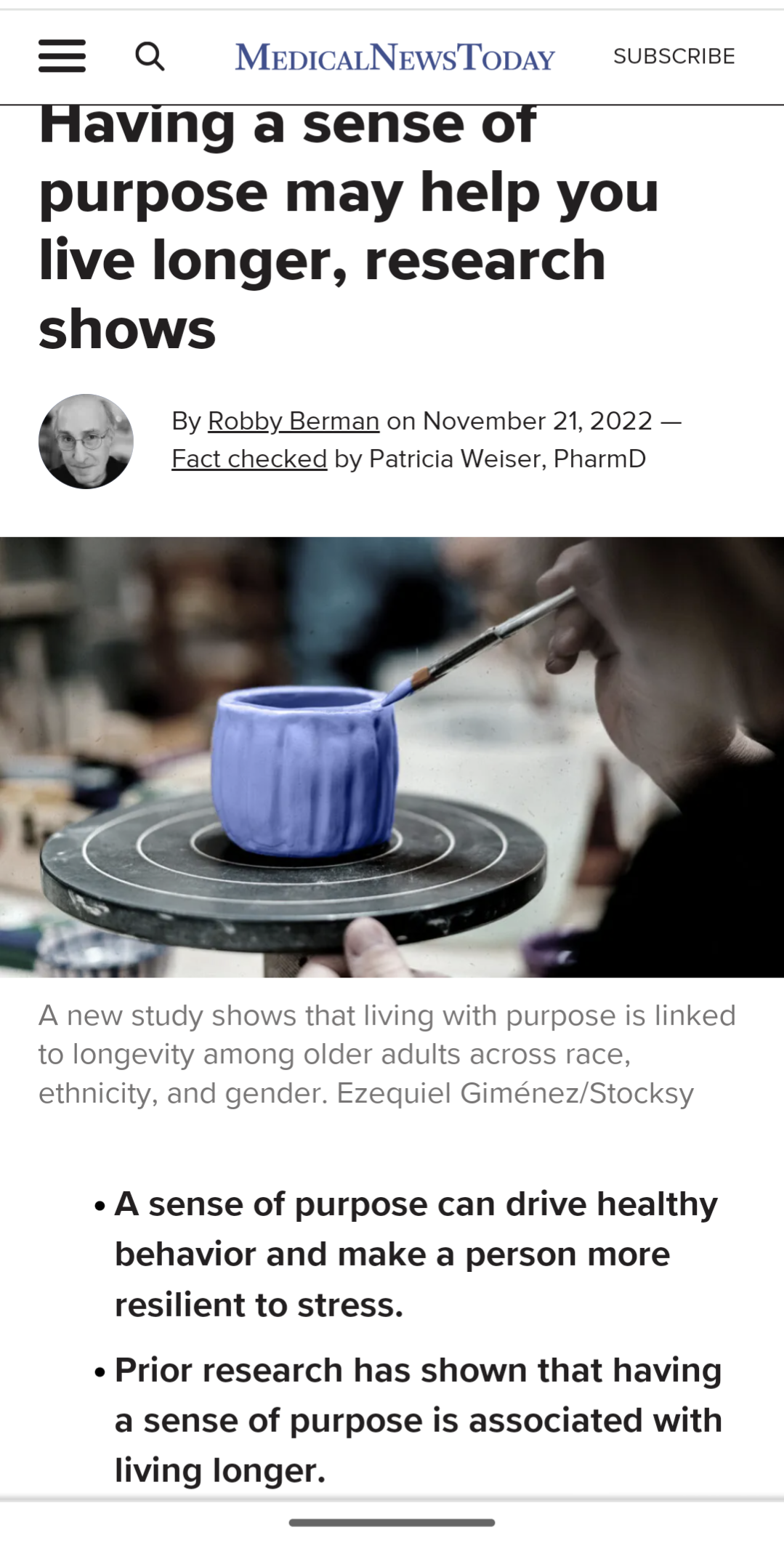
Having a sense of purpose may help you live longer, research shows.
The analysis revealed that those with the strongest sense of purpose lowered their risk of death by 15.2% compared to people with the least sense of purpose. The results showed no significant differences in this association regardless of the participants’ race or ethnicity.
The findings also showed that purpose was more strongly associated with longevity in women than men, although it provided a significant benefit for both.
See the full article here:
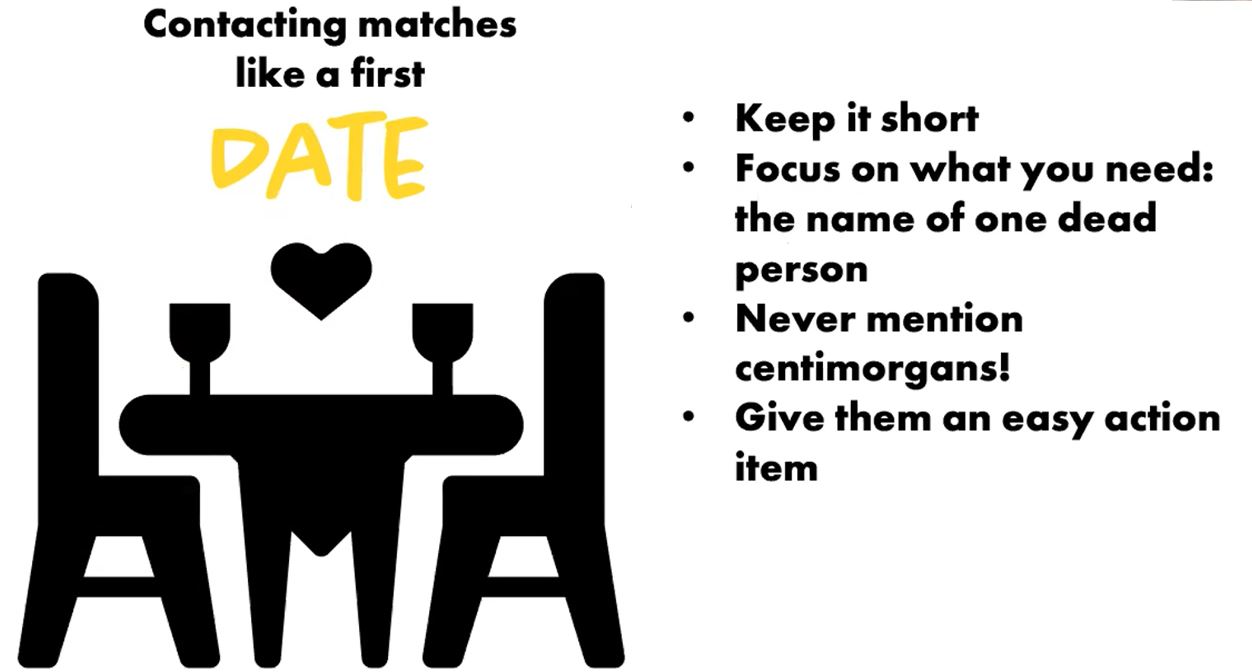
Google Inc. makes lots of tools available to people, some of which are not often talked about. Besides Searching, my favorite tool is called ALERTS. Simply put, you create a regular Google search and then have Google run it for you every day! The system will email you if it finds something matching your criteria from the past 24 hours (older stuff is ignored). The service sends emails to the user when it finds new results—such as web pages, newspaper articles, blogs, or scientific research—that match the user’s search term(s).
To use Alerts, sign in to your Google account using the Gmail you want new discoveries to be sent to, then go to https://www.google.com/alerts . Then create a search and save it! That’s it. You can have multiple alerts, each one is treated individually.
Presumably you have previously tested your search! Alerts doesn’t validate a search, it just runs it. Here are a couple of searches that I am running daily:
“snorkel ai”
starlink OR spacex AND ipo
Yes, of course you can include genealogical searches too. But remember, the results will be newly published stuff, not previously published. Try it, free it is.
“We were born at just the right moment to help change everything.” – Eric Holthaus
 Sometimes it is better to show someone how to do things vs. doing it for them. You know, teach them to fish vs. feeding them a fish. And then there are people like me that need a printed menu when the steps get complicated. So I have created a script to make training films using Zoom and then I used the script to create a film showing how to do the same!
The following PDF shows two types of films to make, the video only shows the first. Enjoy…
Click Here to see/download the PDF.
Click Below to see the video.
The new Edge is fast and slick. But videos are starting up when I open a new page without my permission! I hate that, especially when I want my browsing to remain quiet! I had blocked this long ago in Chrome and had forgotten that this could be optional. When this happens in Edge, you’ll probably find that the autoplay-block option has to be enabled. Curiously, Microsoft does not display this block option in Settings by default, but the option exists! We have to enable the option. Copy the next line into the address bar and press Enter:
edge://flags/#edge-autoplay-user-setting-block-option
Once this flag is enabled, you should see Block on the autoplay options menu.
You will see a list of new options, enable Block.
Then go into Settings, search for Media Autoplay, and set it to Block. Then do Restart of Edge.
It is easy to forget to delete emails in your Gmail system. When these forgotten emails contain large files, like videos and pictures, lots of space can accumulate. I know I sometimes receive humorous videos from friends that I view and then send to others later. When later goes into the next day, I often forget about the file.
You can easily search for old emails by size and then delete them. If the old large files are important, you should save them to your computer and then back them up in an organized fashion!
To search for Gmail mails by size simply type the following into the search bar and hit enter.
size:20 mb
You can use a different size, of course, but I have found that 20 mb is a reasonable first run. Go ahead, surprise yourself. Review each large email and delete accordingly.
“It continues to be true that Flat-Earthers have supporters all around the globe.” – Neil deGrasse Tyson

Find our recipes by clicking below
Family Recipes
Heads up. Google has announced that free online storage for files, photos and videos will be capped at 15GB starting next summer.
From 1 June 2021, any new files created in Drive, as well as photos and videos uploaded to Google Photos, will count towards the 15GB of free storage included with every Google Account. Customers who go over that limit risk having excess content stored in Gmail, Drive, Docs and Photos deleted. 15 gigs seems like lots for just email, but combined with photos, videos and docs and 15 gigs is just too small.
Those who wish to extend their storage beyond 15GB can pick up a Google One account, which starts at $1.99 per month for 100GB storage. Or start cleaning, moving, deleting!
Many folks have become accustomed to using Gmail as a giant storage box for their research. I have created labels for different subjects and stored emails, including those with pictures and even big MP4 files, there. The searching methods Google provides made my email storage spot better than Evernote or DropBox! And many people I know, my grandkids included, have chosen to skip Microsoft Office and are using Google Docs instead, using the free storage area too. And how many of us are using Google Photos for vacation pics, genealogy pics, kids pics…. you get the picture!
Congress told Google and Facebook that they are too big. So, Google said “Yup, our free stuff is too big. The party is over, folks.” Thanks a lot, Congress. You just don’t know how to negotiate!
Well, we have 6 months to figure out how to fit into 15 gigs or get a Google One account. When “the system” decides to delete data from your stored files, they won’t do it “judiciously”. Files or emails will just disappear. So, start now — look for offline storage for those treasured items in your Photo albums; delete those stupid jokes you trade back and forth and never delete. Clean your email by searching for mail with attachments first.
I fear I will be looking seriously at the Google One account. But I must also remember that if Congress pushes hard at breaking up Google, I had better be simultaneously copying files to offline storage. The pandemic has shown us that we should be prepared, just in case.
There is also Microsoft or Adobe or Apple cloud storage that can be used instead of Google’s plan. But, we gotta decide within 6 months. Don’t delay.
Updated: to find out how much space you are using now – First sign in to your Gmail account. Then open a 2nd tab in your browser and go to one.google.com/storage. Your data will be there.
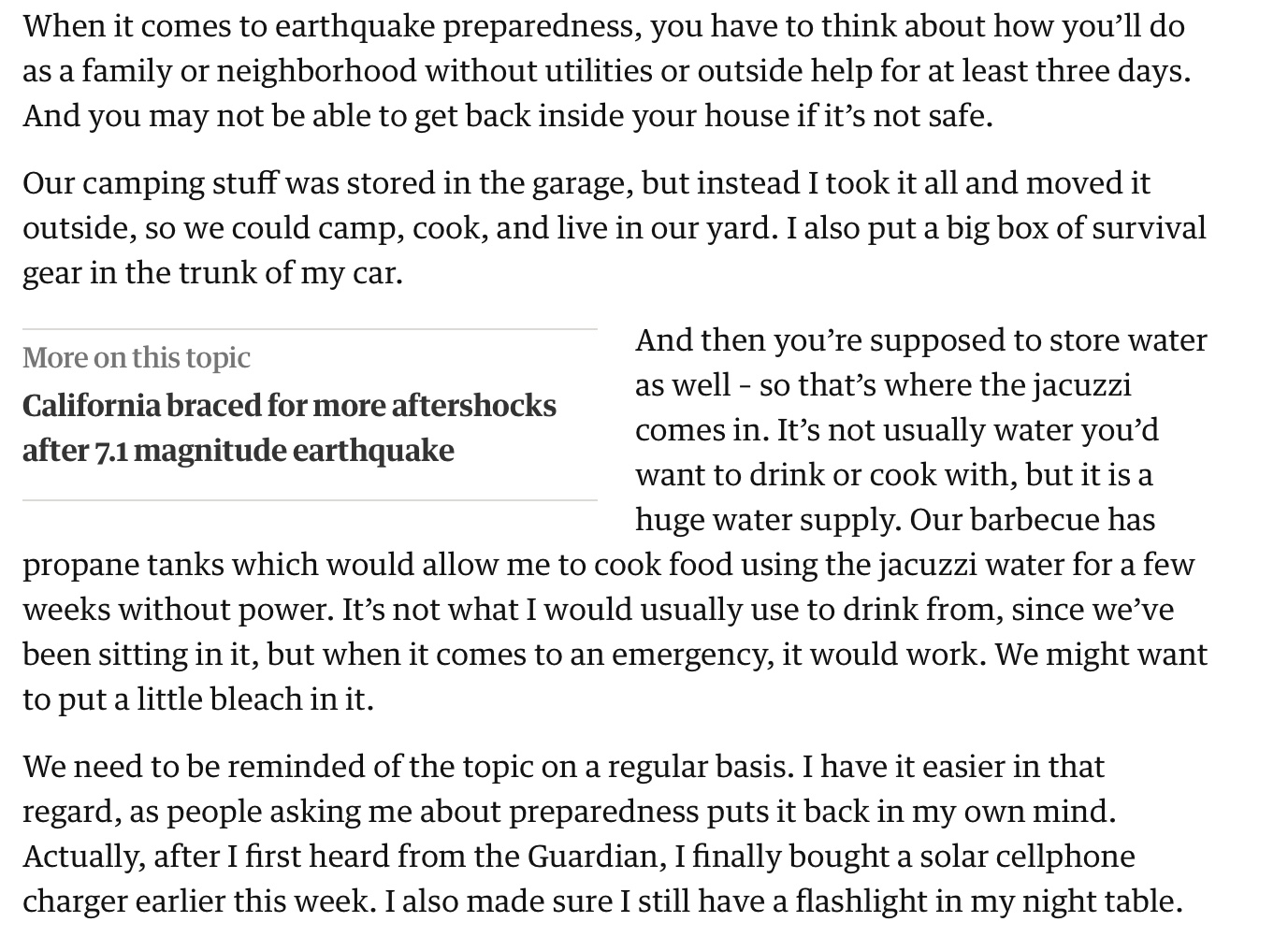
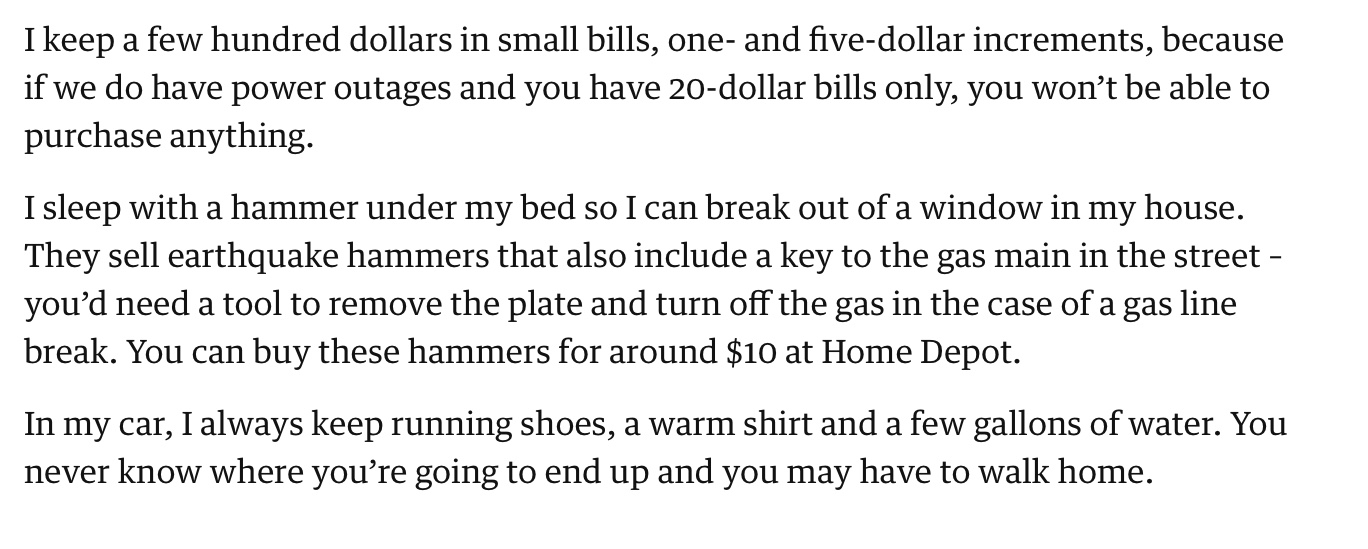
Yes, the 7.1 quake in the deserts of California in 2019 made me wonder how long I could last in our house without help from the outside. Perhaps only a couple of days. We gotta get better prepared. Like water, batteries, and some way to cook. The Guardian newspaper had an article with some good ideas from which I have snapped a couple here. I especially like the idea of a solar cellphone charger. The stash of small money is good too. Read on…
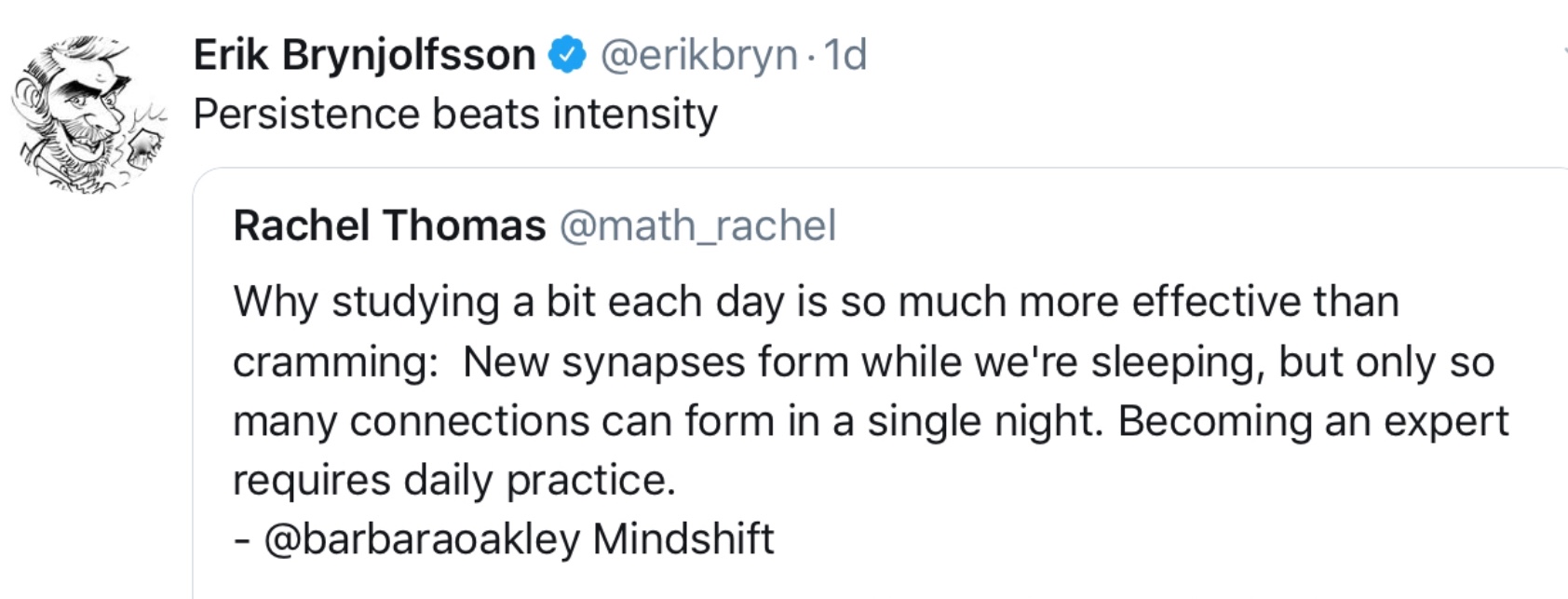
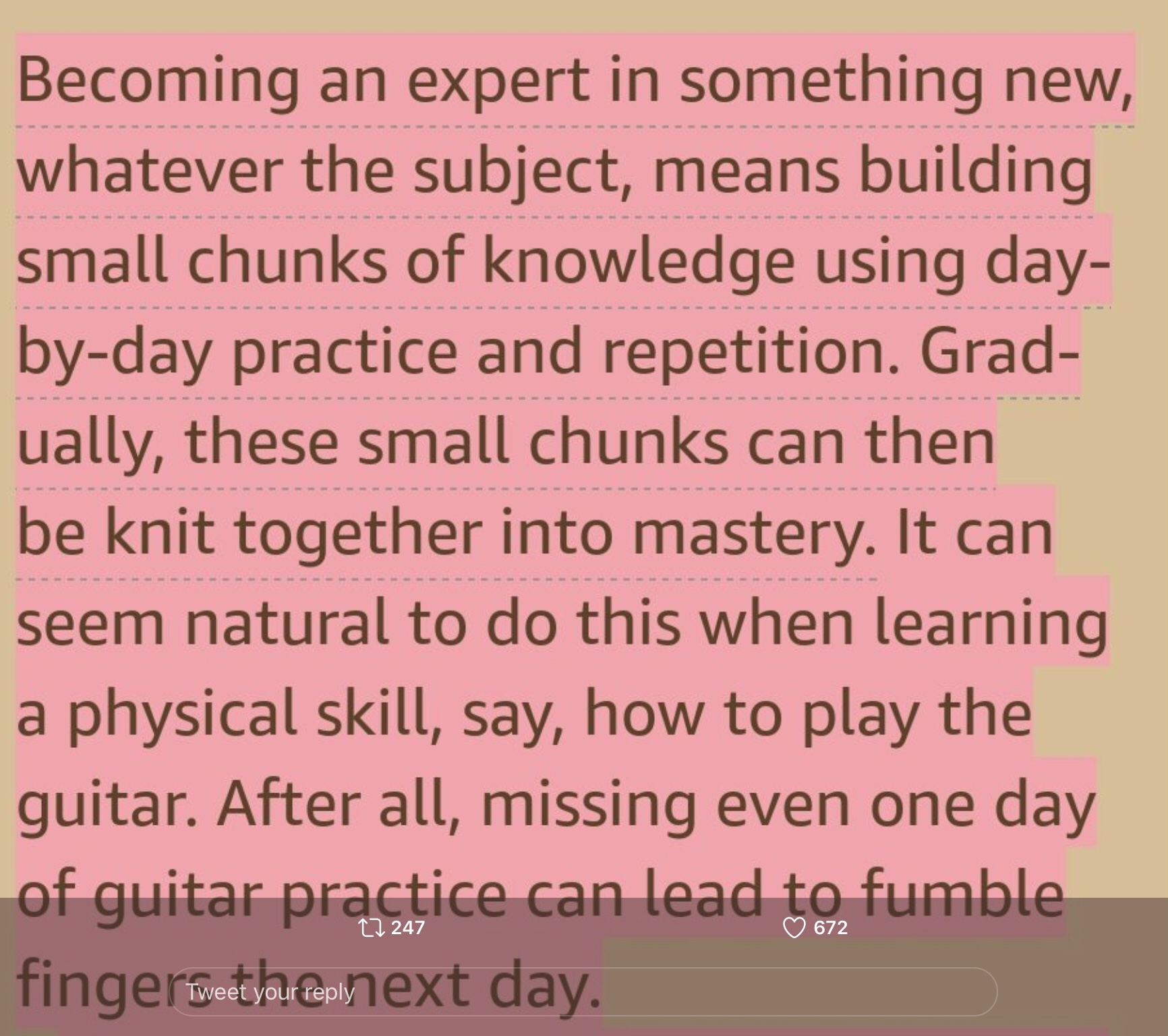
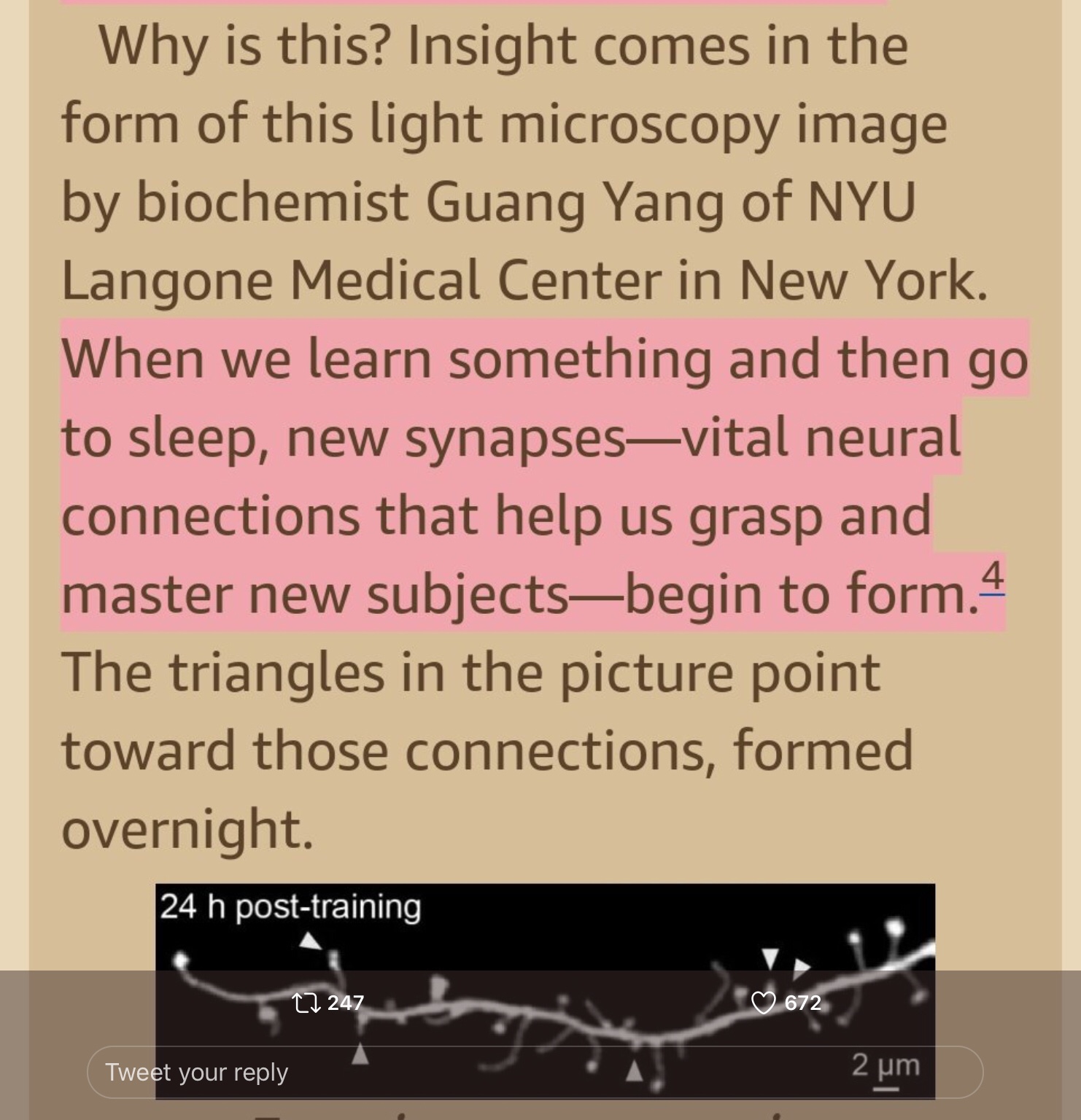
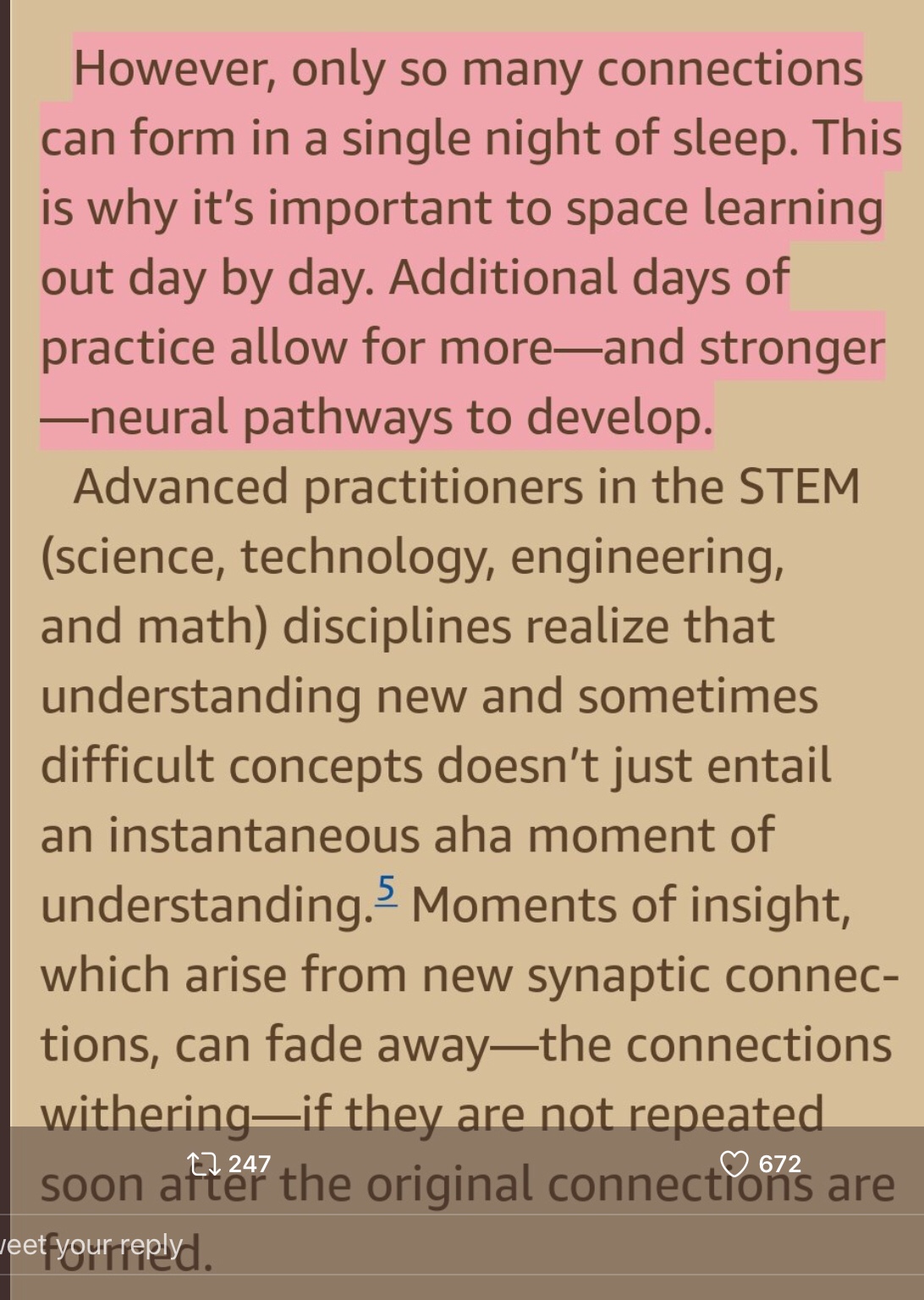
found this on Twitter. Science has finally figured out why learning a little bit every day is so important. Especially when the subject is big or complicated.
Scientists and their friends need to stand up and demand evidence-based policy and facts. Science is not partisan. Protecting our world and the people in it is not a partisan issue. This is why I will march on April 22nd. I hope you join in the cause!
Check out this “show and tell” video about the Resistor HAT and the designs that were inspired by it.
You can get a PDF of the pattern by Clicking here.
Thanks to Heidi Arjes of Craftimism.com for making this pattern available to the marchers. BTW, don’t underestimate Heidi. She is a scientist in the Department of Bioengineering and Department of Microbiology and Immunology at Stanford University. Enjoy

My great uncle Andrew Robeson (b. 7/24/1891 d. 4/17/1964) made leather billfolds and key holders as a hobby. When he died, I was given sheets and sheets of colorful leathers, which of course, I didn’t know how to use. Eventually I threw it all away – mildew had begun to grow. I wish I had all that leather now! We could make things like this.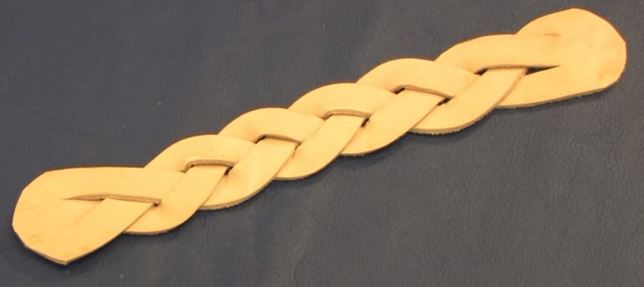
These are called “mystery braids” or “magic braids”. These YouTube movies show how to do this braid and make some bracelets. Just be careful when you use the knife!
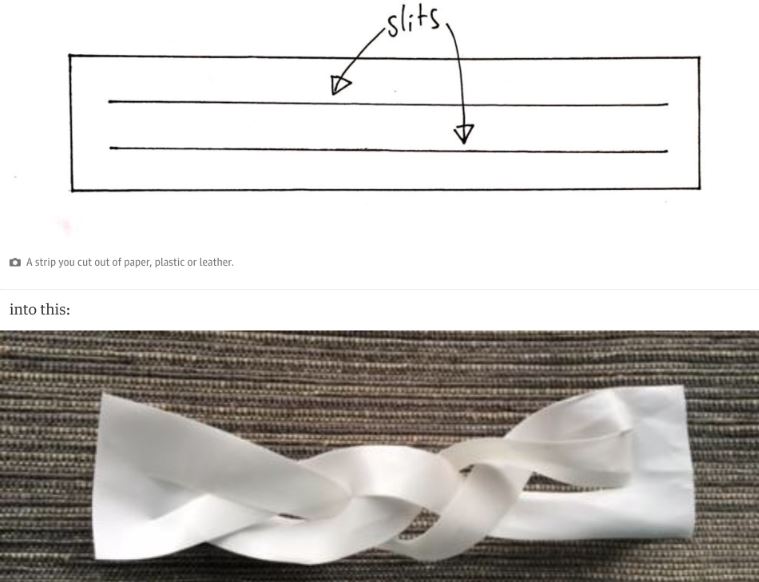
This is the basic method. (4:27) here
This shows how to measure the leather and add the snaps!! This flick is probably the best of the group. (7:08) here
Martha Stewart style with a string to tie it off (2:14) here
The simple method. (1:45) here
An old guy shows how too. But by this time, you probably don’t need this! (5:31) here
Watch the movie clip shown at this link to see how to wrap gifts with one piece of tape. You have to click through a commercial up front, and then be sure to avoid the other adverts. But this is the web site SLATE, so it is reasonably safe. The movie clip is then right under the headlines.
The URL is http://www.slate.com/articles/life/the_short_cut/2015/12/amazing_trick_for_wrapping_a_christmas_gift_with_one_piece_of_tape_video.html
Or just click HERE
It actually works!
 Jims BBS